Choosing the best Touch Pos Display in 2026 requires more than comparing screen size or retail price. A checkout screen faces fingerprints, bright windows, rushed users, and constant tapping. It must remain readable and responsive during long shifts. Grand View Research reported that the global POS terminals market was valued at approximately USD 104.49 billion in 2023. The same report projects strong growth through 2030. That growth reflects wider digital payment adoption, but it does not guarantee that every display suits every store.
Market estimates vary. They use different definitions, regions, and hardware categories. Mordor Intelligence also forecasts significant POS terminal expansion through 2029. These figures show momentum, not a buying decision. They should be treated carefully. A small café may need a compact 15-inch screen, while a supermarket may require a brighter 21.5-inch panel with wide viewing angles. Retail experience teaches a simple lesson: impressive specifications can fail at the counter.
Look beyond resolution. Test touch accuracy with wet or gloved fingers, check response time, and inspect the viewing angle beside a window. Confirm compatibility with the payment software, operating system, receipt printer, and customer display. PCI Security Standards Council guidance also makes secure payment architecture essential, although the screen itself does not create compliance. Ask about warranty terms, replacement parts, firmware updates, and remote device management. Energy use matters across hundreds of terminals. So does accessibility. A practical 2026 choice balances durability, total ownership cost, security, and daily usability. Some assumptions will be wrong. Pilot testing remains wiser than trusting a product sheet alone.
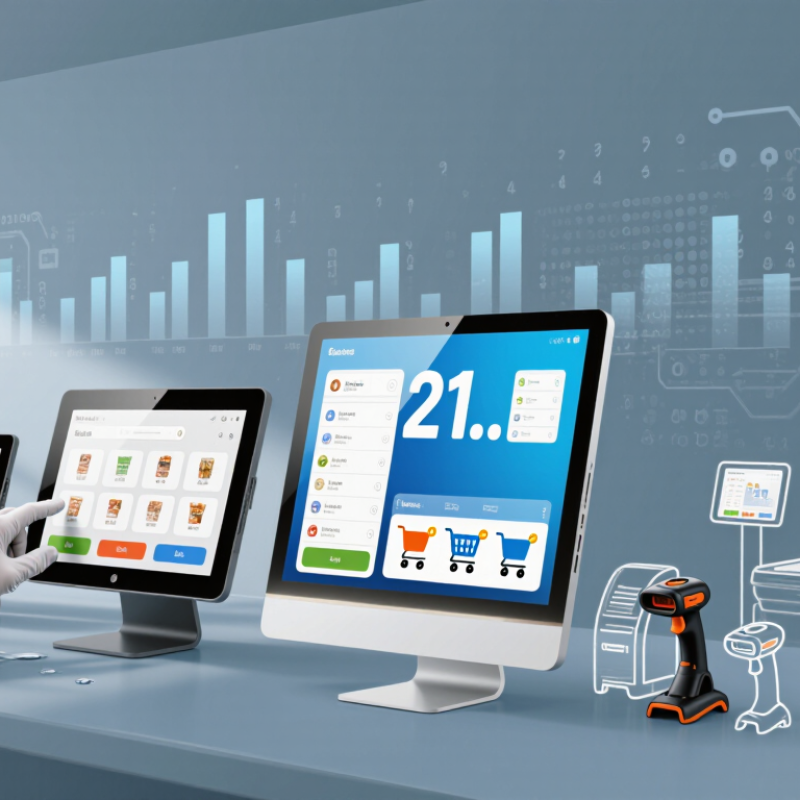
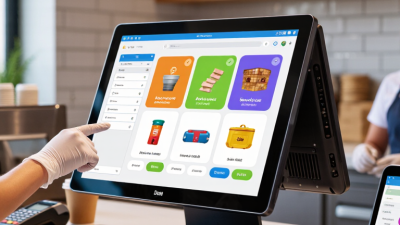
A Pos Display is more than a bright screen beside the checkout. It is the visual control point connecting customers, sales staff, inventory, payments, and service decisions. In a busy store, a cashier may use it to scan items, adjust quantities, check product details, and confirm payment within seconds.
Its value depends on the role it performs. A responsive touch surface reduces repeated clicks and keeps attention on the customer. Clear text helps staff work during evening shifts or under uneven lighting. A tilted screen can reduce glare, while a stable stand prevents small movements during frequent taps. These details sound minor. They are not.
From practical retail testing, the best display supports the whole workflow, not only the transaction. It should remain readable after hours of use, respond accurately to gloved or damp fingers, and connect reliably with inventory and receipt systems. Cable placement also matters near crowded counters. Poor routing creates clutter and accidental unplugging.
A larger display is not automatically better. It may occupy valuable counter space or slow navigation if the interface is poorly designed. That assumption is often wrong. Retail teams should observe real tasks, measure peak-hour response, and ask staff where mistakes occur. Customer accessibility also deserves attention, including comfortable viewing angles and readable interface controls. The right Pos Display quietly removes friction while leaving staff more time for human service.
A reliable Retail Pos Display should fit your workflow, not only your counter. Measure the available space before comparing screen sizes. A 15- to 17-inch display often balances readable menus with limited countertop depth. For busy checkout areas, choose a screen with at least 300 nits of brightness. Stronger brightness helps when sunlight reaches the register. But excessive brightness can strain eyes during long shifts.
Touch performance matters every minute. Capacitive touch usually supports quick taps and multi-touch gestures. Test it with dry fingers, gloves, and slightly damp hands. I once evaluated a display that felt smooth in the showroom but missed touches during a lunch rush. That experience changed my checklist. Do not trust a short demonstration. Ask for repeated input testing.
A stable stand, adjustable tilt, and a wide viewing angle also reduce awkward wrist movement.
Check the hardware behind the glass. A modern processor, sufficient memory, and solid-state storage can keep sales software responsive. Select USB, network, and display ports that match your existing devices. Fanless construction may reduce noise, although it can handle heat less effectively.
Think carefully here. Look for a durable front surface, easy-clean materials, and a dependable warranty with clear service terms. Confirm operating-system compatibility before purchase. Small details often decide whether the display remains useful after months of daily cleaning and constant tapping.
Choosing a touch POS display in 2026 starts with the operating system, not screen size. A 2024 global payments report found digital wallets generated about half of worldwide e-commerce transaction value. That shift makes payment software compatibility essential. Confirm support for contactless readers, barcode scanners, printers, and offline transactions before installation. A beautiful screen is useless when the receipt printer needs a workaround.
Android-based systems usually offer wider hardware flexibility and faster app deployment. Windows systems may fit retailers using desktop accounting, inventory, or security tools. Proprietary systems can feel polished, but they may limit software choices later. Test the full workflow: scan a product, apply a discount, accept a mobile wallet, and print a receipt. Watch the cable paths. Small failures become daily frustrations. For a Handheld Pos Display, check battery life, Wi-Fi roaming, screen brightness, and one-handed grip. A 2024 market analysis valued the global POS terminal sector above 100 billion dollars, showing how quickly this equipment category is expanding. Growth does not guarantee quality.
Software compatibility deserves a written checklist. Ask whether updates support your operating system, payment processor, tax rules, and inventory platform. PCI DSS v4.0.1 also places stronger emphasis on security controls and ongoing risk management. Choose encrypted connections, role-based access, and remote patching. Test recovery after an internet outage. I would not trust a vendor’s “compatible” label without a live demonstration. That judgment can be inconvenient, but it prevents expensive surprises.
Operating-system and software compatibility comparison for touch POS displays. A score of 5 indicates the strongest practical support for the listed capability.
Windows and Linux provide the broadest peripheral and offline flexibility, while Android and iPadOS are strong for mobile-first touch applications. ChromeOS performs best with browser-based or cloud POS software. Before purchasing, verify support for receipt printers, barcode scanners, payment terminals, cash drawers, and offline operation.
Evaluate Usability, Durability, and Accessibility Features
A touch POS display should feel simple during a busy service. Test it with wet fingers, gloves, and fast repeated taps. Buttons need clear spacing, strong contrast, and predictable feedback. A cashier should complete common tasks without searching through crowded menus. Adjustable brightness helps in both bright storefronts and dim counters. Keep it practical.
Accessibility deserves equal attention. Check whether text can be enlarged without hiding essential controls. Look for keyboard, switch, or alternative input support where needed. Audio and visual alerts should work together, not separately. Screens should allow comfortable viewing from different heights and angles. Always compare these features with local accessibility requirements.
Durability begins with the environment. A display near coffee, grease, or cleaning spray needs suitable protection and easy-to-clean surfaces. Review published ratings for dust, moisture, impact, and operating temperature. A stable stand matters too; a loose screen can cause errors and frustration. Ask about warranty coverage, repair options, and replacement parts.
I once tested a bright display that looked excellent but produced glare at noon. The specification sheet did not reveal that weakness. Real counter testing still matters. A short trial can expose heat, lag, or awkward cable placement before purchase.
A touch POS display should connect reliably during the busiest sales periods. Check wired Ethernet, secure Wi-Fi, Bluetooth, and USB options before purchasing. A useful store-floor test involves moving the terminal between checkout areas. Watch for dropped connections, delayed payment screens, or devices that reconnect slowly. Fast recovery matters. The display should also support network segmentation, keeping payment traffic separate from staff devices and guest access.
Security begins with the operating system and continues through daily use. Choose hardware that receives regular security updates and supports encrypted communication. Confirm that user permissions can limit refunds, settings changes, and customer-data access. A locked-down enclosure can protect ports from casual tampering. Keep cameras, microphones, and unused wireless features disabled when they are unnecessary. Small gaps become practical risks.
Data protection needs more than a privacy statement. Ask where transaction data is processed, how long it remains stored, and who can retrieve it. Look for tokenization, strong authentication, audit logs, and automatic screen locking. Test the display with a dummy transaction, not real customer information. That detail is easy to miss. I would also review the supplier’s incident response process and update schedule. No checklist catches every failure, and a beautiful screen cannot compensate for weak access controls. A slightly slower interface may be safer if it clearly confirms each sensitive action.
Choosing a touch POS display in 2026 requires more than comparing screen size and purchase price. The useful figure is total cost over its working life. Include the display, mounting hardware, payment accessories, software fees, electricity, training, and disposal. Payment Terminal Display compatibility also matters, especially when checkout space is limited.
In real store installations, maintenance often decides long-term value. Check cleaning requirements, touch accuracy, cable strength, warranty terms, and local repair support. A bright screen may reduce input mistakes near a sunny window. However, higher brightness can increase power use. Small faults become expensive during lunch rushes. My first cost estimate once ignored staff time spent restarting a slow unit. That mistake changed the way I compare displays.
Calculate annual cost by adding purchase, service, downtime, and replacement expenses, then dividing by expected service years. Request evidence for the claimed lifespan. Ask how quickly parts can be supplied and whether software updates remain available. Test the screen with dry fingers, damp fingers, and protective gloves. Do not trust a polished demonstration alone. A cheaper display can lose value through frequent calibration, weak hinges, or unavailable parts. A more expensive model may be sensible when it reduces errors and survives heavy daily use. Still, projected savings are not guaranteed. Review them after six months of actual operation.
Five-year planning comparison for commercial touch POS displays. Costs are indicative USD estimates based on typical market specifications and should be verified with current supplier quotations.
| Display Category | Typical Screen Size | Purchase Price per Unit | Installation Cost | Expected Service Life | 5-Year Hardware Units Required | Annual Maintenance | Annual Energy Cost | Warranty Period | Best Operating Environment | Estimated 5-Year TCO | Long-Term Value |
|---|---|---|---|---|---|---|---|---|---|---|---|
| Entry Commercial | 15.6 inches | $650 | $100 per unit | Approximately 3 years | 2 units | $90 per year | $18 per year | 1 year | Low-to-medium transaction volume; climate-controlled indoor use | $2,140 | Lowest initial cost, but the shorter service life increases replacement risk. |
| Standard Commercial | 15.6 inches | $950 | $150 per unit | Approximately 5 years | 1 unit | $120 per year | $22 per year | 2 years | Retail stores, restaurants, cafés, and other indoor locations | $1,810 | Balanced option for most businesses seeking predictable five-year ownership costs. |
| Premium High-Brightness | 21.5 inches | $1,450 | $200 per unit | Approximately 5–7 years | 1 unit | $150 per year | $30 per year | 3 years | High transaction volume, customer-facing service counters, and bright interiors | $2,550 | Higher upfront cost, but improved visibility, workspace, and user comfort can raise productivity. |
| Rugged or Sealed Commercial | 15.6 inches | $1,800 | $250 per unit | Approximately 7 years | 1 unit | $160 per year | $28 per year | 3 years | Busy food service areas, dusty locations, semi-outdoor counters, and demanding environments | $2,990 | Best protection against spills, dust, and frequent cleaning; strongest choice where downtime is expensive. |
Confirm compatibility with your operating system, payment tools, scanners, printers, and offline transactions. Test the complete workflow. Scan an item, apply a discount, accept a contactless payment, and print a receipt. A beautiful screen cannot fix missing software support.
Mobile operating systems often support varied hardware and faster application deployment. Desktop operating systems may suit stores using accounting, inventory, or security software. Closed systems can feel polished but may limit later choices. Your existing tools should decide.
Ask for a live demonstration, not only a compatibility statement. Scan one product, apply a discount, process a digital wallet payment, and print. Check the cables under the counter. I would not skip this step.
Look for wired networking, secure wireless networking, Bluetooth, and USB. Move the terminal between checkout areas. Watch for dropped connections, delayed payment screens, and slow reconnection. Fast recovery matters.
Separate payment traffic from staff devices and guest access through network segmentation. Use encrypted connections and current security updates. A locked enclosure can reduce casual port tampering. Small gaps become real risks.
Use role-based permissions for refunds, settings changes, and customer-data access. Enable strong authentication, audit logs, and automatic screen locking. Disable unused cameras, microphones, and wireless features. Some controls may feel inconvenient.
Ask where transaction data is processed, how long it remains stored, and who can retrieve it. Look for tokenization and encrypted communication. Test with dummy data. Real customer details do not belong in experiments.
Confirm whether the system supports offline transactions and safe recovery. Disconnect the network during a controlled test. Check how payments, receipts, and later synchronization behave. Recovery is easy to overlook.
Check battery life, wireless roaming, screen brightness, and one-handed grip. Carry it through a busy store. Make sure the display remains readable near bright windows. I may underestimate comfort until the fifth hour.
Choosing the best Touch Pos Display in 2026 requires more than comparing screen sizes or prices. Retailers should first define how the display will support daily operations, including checkout, inventory access, customer interaction, and staff productivity. Important hardware factors include screen clarity, touch accuracy, processing performance, ergonomic design, and compatibility with peripherals such as scanners, printers, and payment devices. The operating system and POS software should integrate smoothly with existing workflows, support regular updates, and provide reliable functionality across different retail environments.
Usability, durability, and accessibility are equally important for long-term performance. A suitable display should be easy to clean, comfortable to use during extended shifts, and resilient in busy settings. Retailers should also assess network connectivity, user permissions, encryption, secure authentication, and data protection practices. Finally, evaluate the total cost of ownership, including installation, software, maintenance, energy use, repairs, and future upgrades. The best choice is the Touch Pos Display that delivers dependable performance, secure operation, practical usability, and lasting value rather than simply the lowest initial price.